Initial Set-up and Re-Installation of Ubuntu 24.04
Introduction
This article explains what to do with a computer once you borrow it from the library. The instructions will show how to install the operating system Ubuntu 24.04 and how to assume the role of the administrator of the computer.
You may need to perform the system restoration even before the end of semester. This would happen if you played too much with sudo privileges and the computer cannot be controlled any more. Sometimes a fresh start is the only solution.
The computer needs to be booted from the USB stick instead from the damaged files on the hard disk. You need to have a USB stick with Ubuntu 24.04 installation.
This tutorial assumes that you have created a bootable USB stick in advance. The creation of a bootable USB stick was a part of the Homework 1.
Installation of Ubuntu 24.04 from the USB stick
- 1. Turn off the computer and connect it to the electricity. Insert the bootable USB drive with Ubuntu 22.04 while the computer is powered off.
- 2. Power on the computer.
- 3. Press F12 repeatedly to prevent old operating system from booting up.
- 4. Veriyfing / Changing Boot Mood.
You will see one of the following two screens
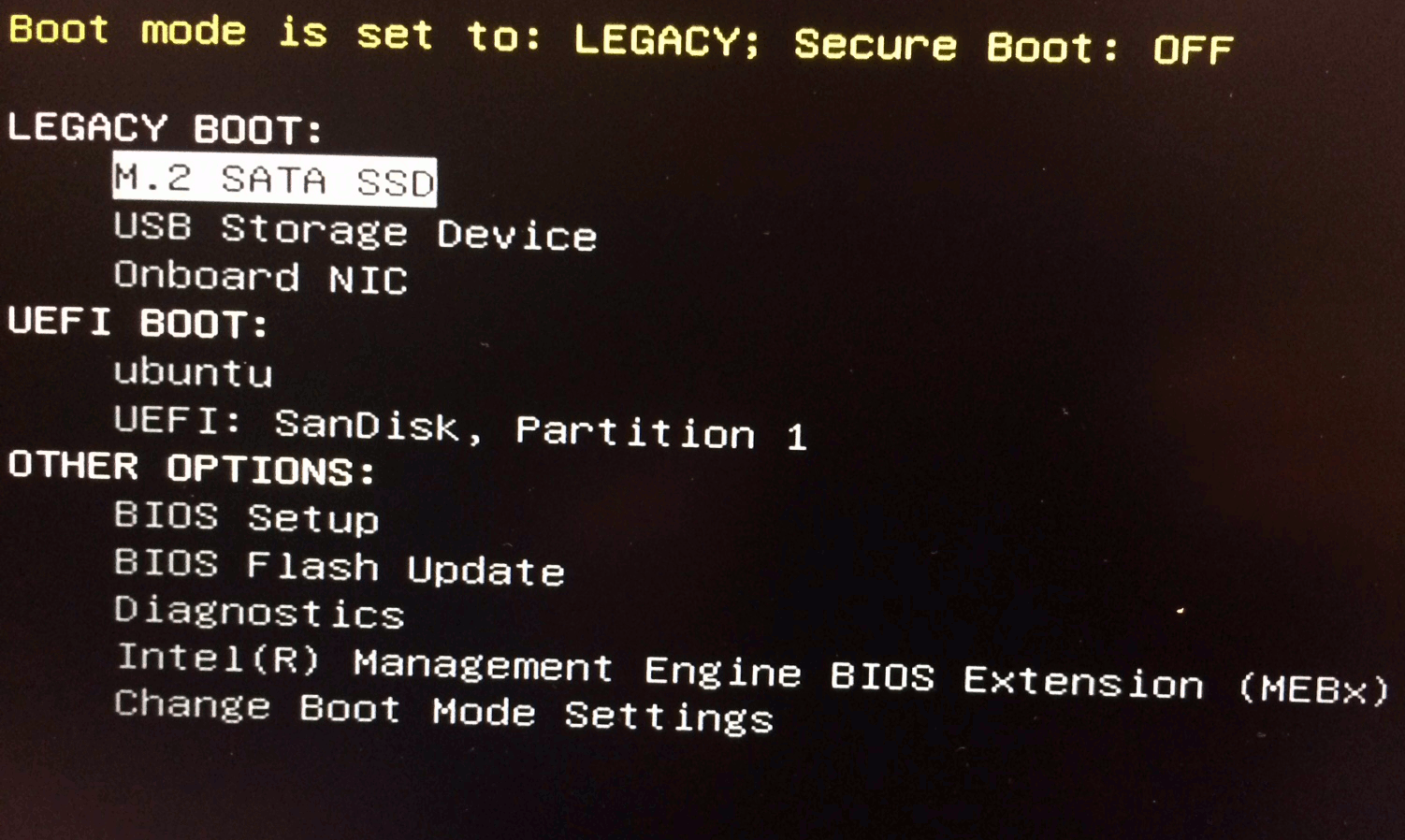
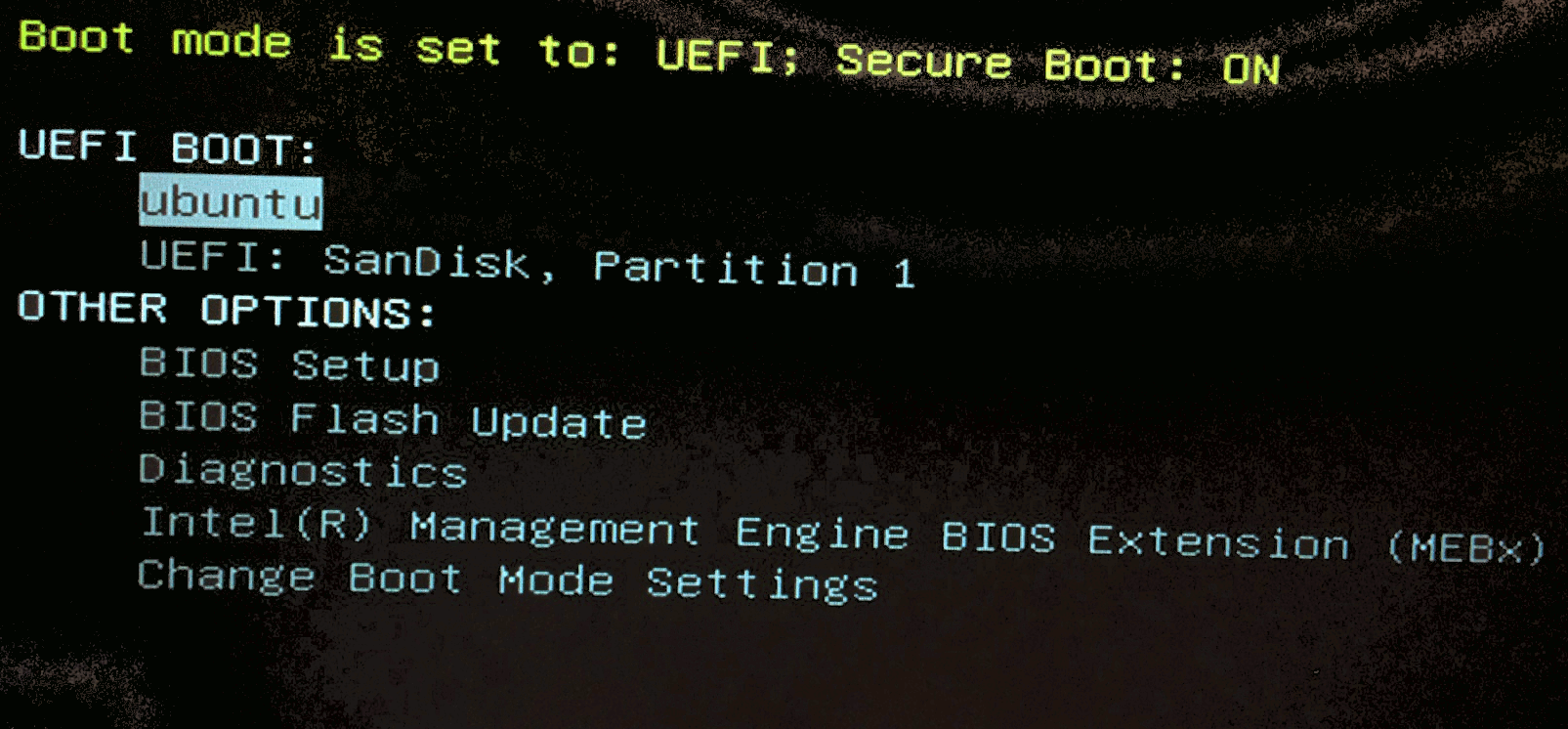
Figure 1.1: Boot mode is set to: LEGACY; Secure Boot: OFF Figure 1.2: Boot mode is set to: UEFI; Secure Boot: ON If you see the screen as in Figure 1.1, skip to step 5 (you are lucky).
If you see any other message in the top line, for example "Boot mode is set to: UEFI; Secure Boot: ON" like in Figure 1.2, you need to complete the steps 4.1-4.4. outlined below.
- 4.1. Move with the arrow keys to highlight "Change Boot Mode Settings" and press enter.
- 4.2. Select "Legacy Boot Mode, Secure Boot Off"
- 4.3. Select "Yes"
- 4.4. Select "Apply the Changes"
- 4.5. The computer will automatically restart. Keep pressing the F12 button until you see the screen shown in Figure 1.1.
- 5. Installation of Ubuntu.
- 5.1. If you see a boot mode other than "LEGACY; Secure Boot: OFF", turn off the computer and start from Step 1.
- 5.2. Move with the arrow keys to highlight "USB Storage Device" and press "Enter" (This option is under the first menu with the title "LEGACY BOOT").
- 5.3. Select English from the left menu.
- 5.4. Click on "Install Ubuntu"
- 5.5. The default selection "I don‘t want to connecto to a wi-fi network right now" is the one to be used.
- 5.6. Choose "Normal installation" and check the box next to "Install third-party software for graphics and Wi-Fi hardware, Flash, MP3 and other media."
- 5.7. Select "Erase disk and install Ubuntu" Do not choose any of the encryptions.
- 5.8. Continue with default selections.
- 5.9. If you are about to return the computer to the library, you must choose name "programmer" after being asked "Your name". The computer‘s name and username will be filled. Do not change these. Select the password to be exactly the same as it was at the beginning of the course. Leave the selection "Require my password to log in".
- 5.10. After the installation, the computer will ask to be restarted.
- 5.11. Click on the "Restart" button. Wait until you receive the request to remove the usb drive.
- 5.12. Remove the drive and press "enter". Wait for the computer to restart.
- 5.13. Turn on the computer to verify the installation. You should log in as programmer.
- 5.14. Click on the Ubuntu icon in the top left corner and search for "Terminal". Type the following command
lsb_release -a
Your installation is successful if you receive the following messageNo LSB modules are available Distributor ID: Ubuntu Description: Ubuntu 22.04.1 LTS Release: 22.04 Codename: jammy
- 5.15. Type
exit
to close the terminal window. - 5.16 Turn off the computer using the main menu on the right-hand side.
- 5.17.a. If you are not returning the computer to the library, then you must create a user baruchadmin with sudo privileges and password known to the instructor, as explained in course policies.
- 5.17.b. If you are returning the computer to the library, you must not change the password, username, add, delete, or modify privileges of user(s) created by following the steps from this tutorial. In particular, you will not create a user baruchadmin, since the instructor will know the password for programmer. You will then bring the computer to the course instructor who will check the computer and change the password to a new one known only to library personnel and the instructor. Before the return is accepted, a representative from the library will also verify the condition of the computer and the installation of the operating system.