Preparing Windows Computers for C++ Programming
1. Dual view
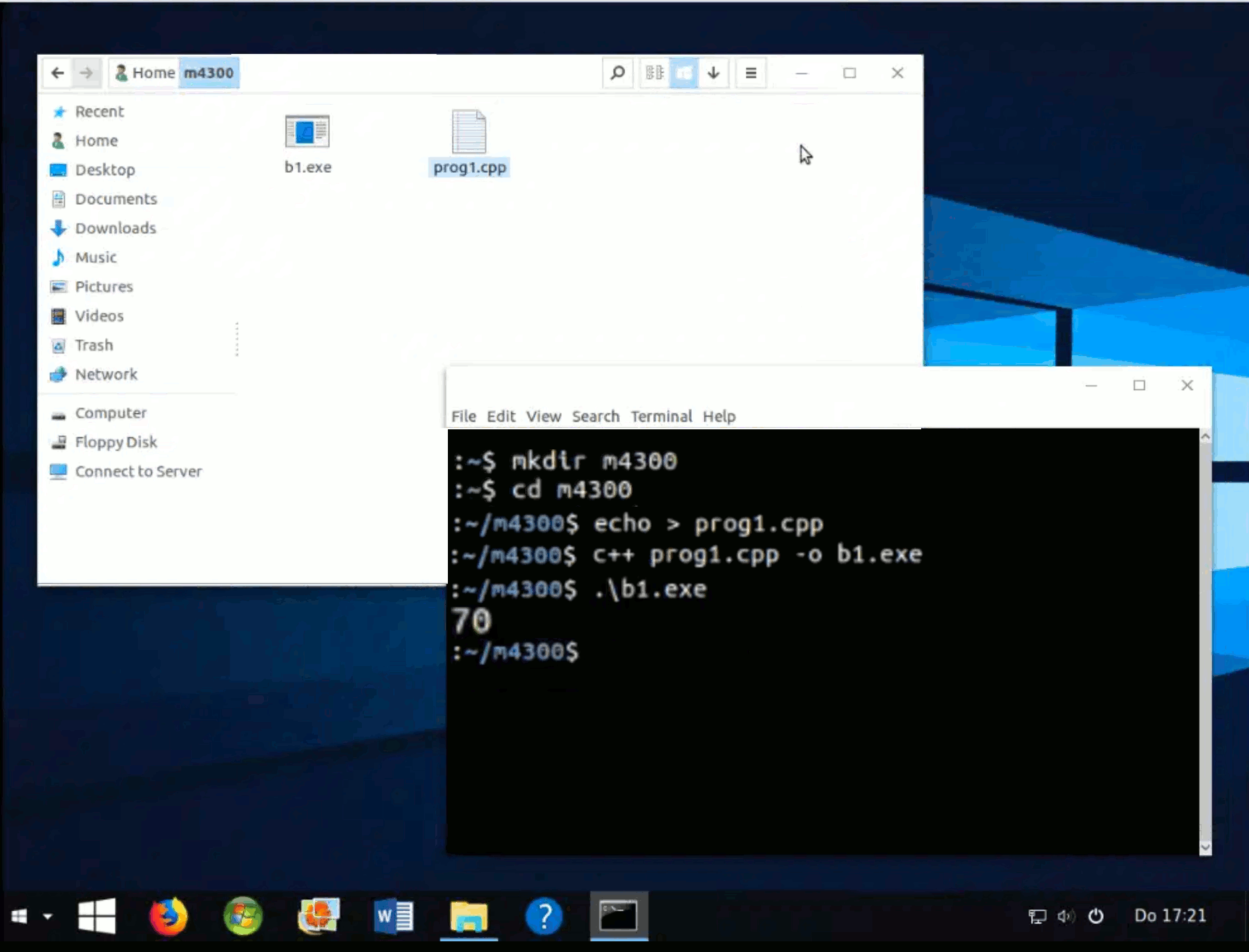
Dual view is a setup where:
- 1. A Terminal window is open.
- 2. A File Explorer window is open.
- 3. Both the terminal and the file explorer show the same folder.
Remark. On Mac, the File Explorer equivalent is the app called Finder.
2. Dual View on Windows
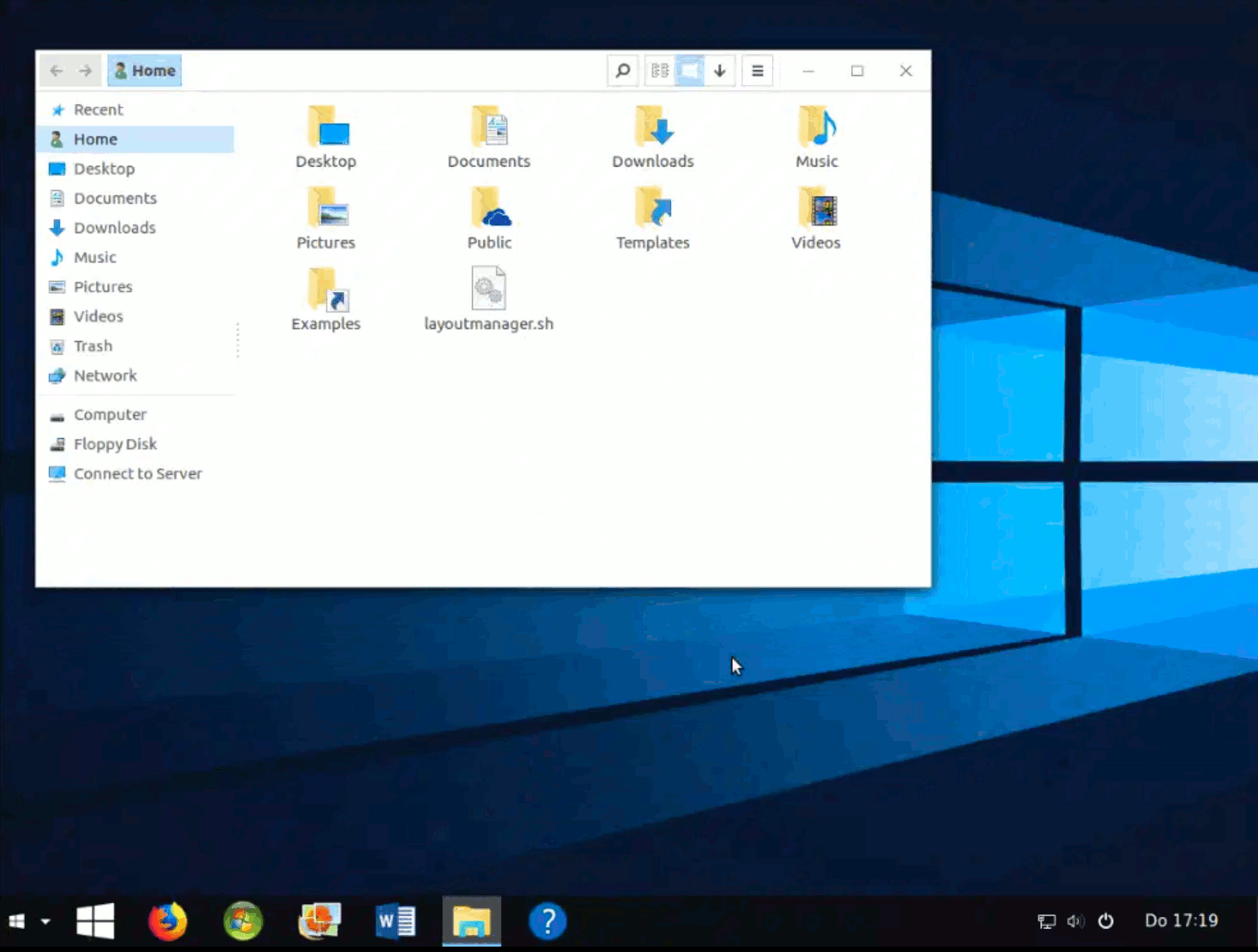
2.1 Opening File Explorer
The first step is to open the File Explorer. Many computers have a desktop shortcut that opens File Explorer, usually pointing either to the root folder of the hard drive or to the documents folder. If such an icon is not available, the taskbar at the bottom of the screen often includes a shortcut to open File Explorer. Alternatively, you can access it from the main menu.
2.2 Starting the terminal
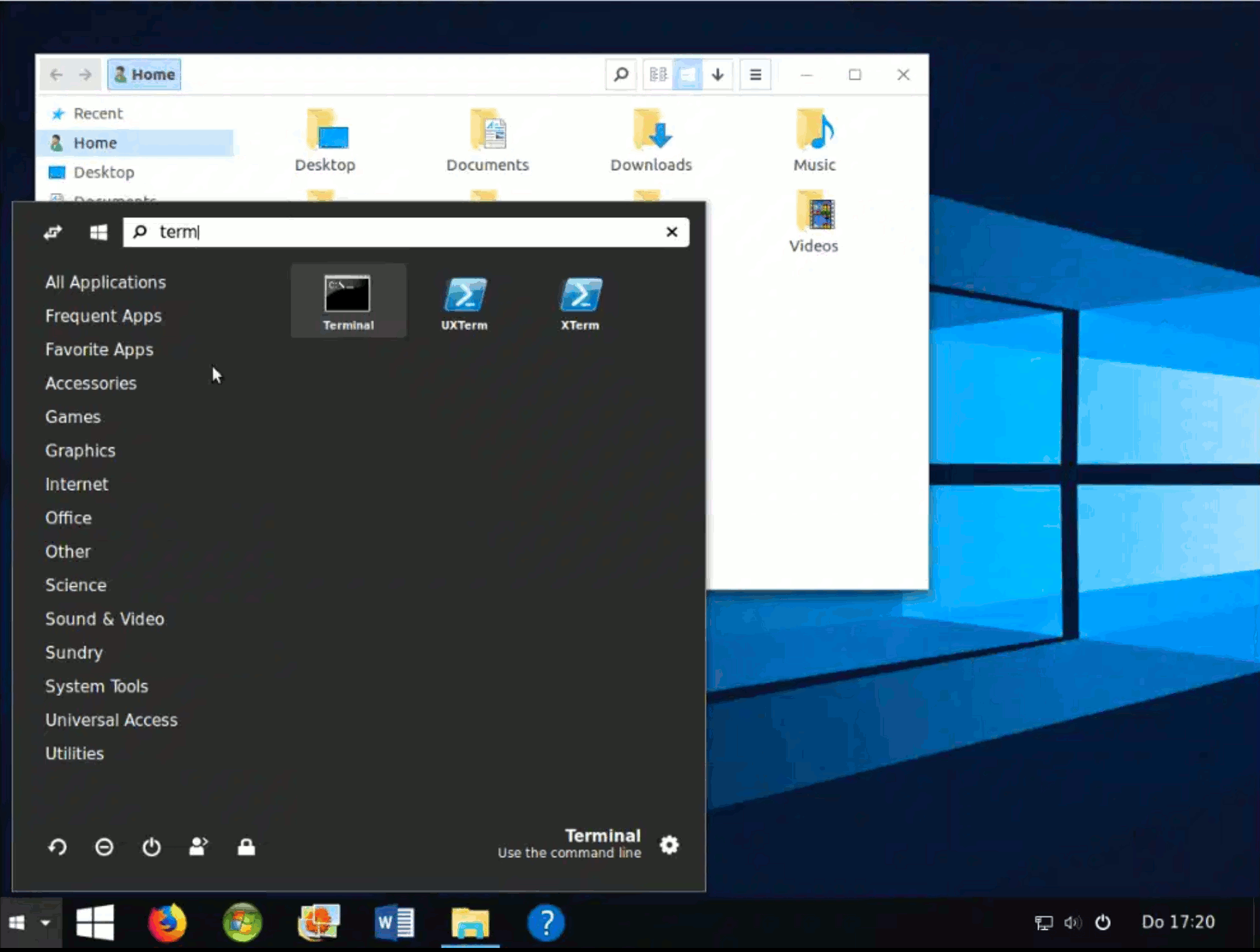
You can open the terminal by typing terminal into the search bar. The search bar is available from the main menu. When the black Terminal icon appears, click it to launch the program.
2.3 Creation of folder
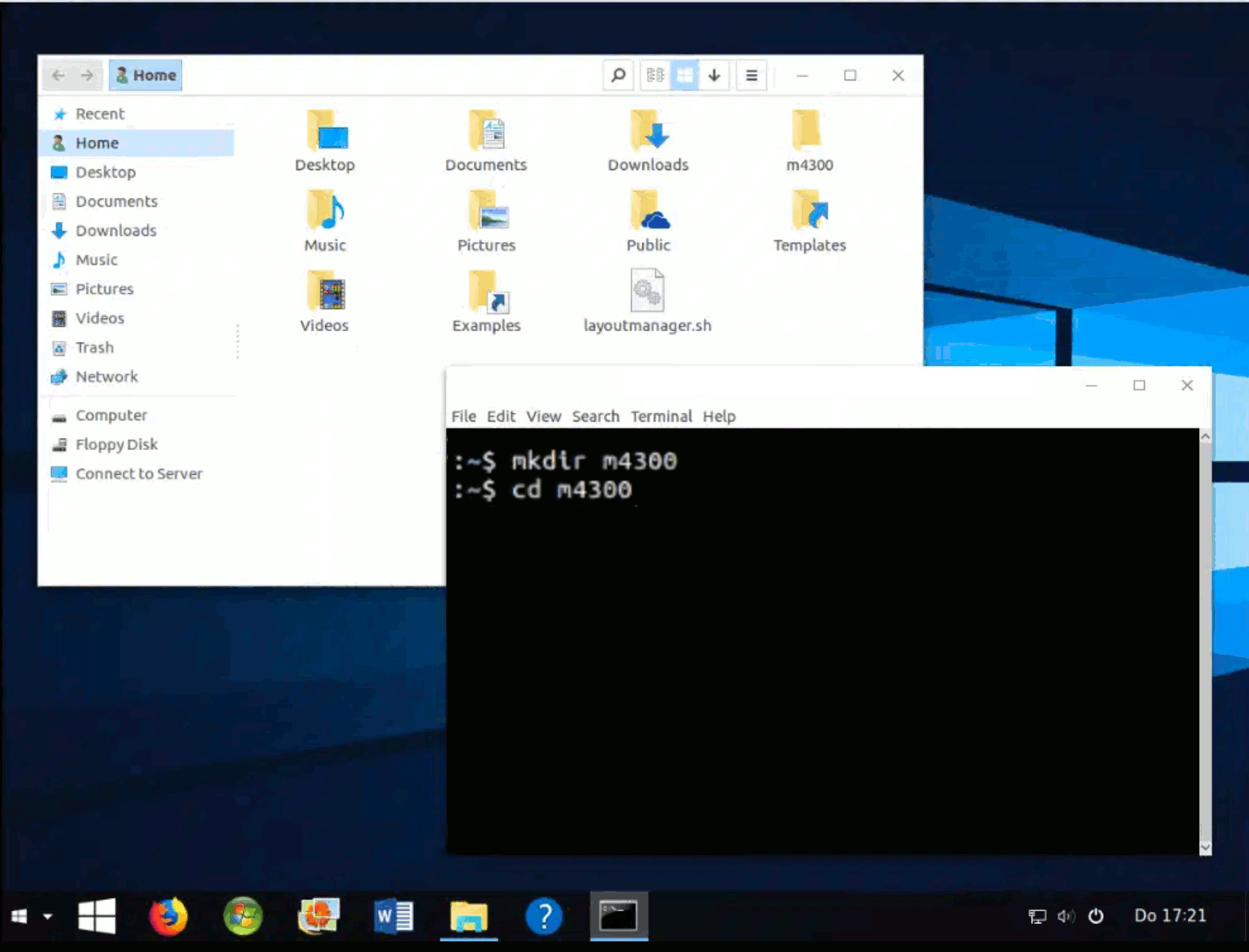
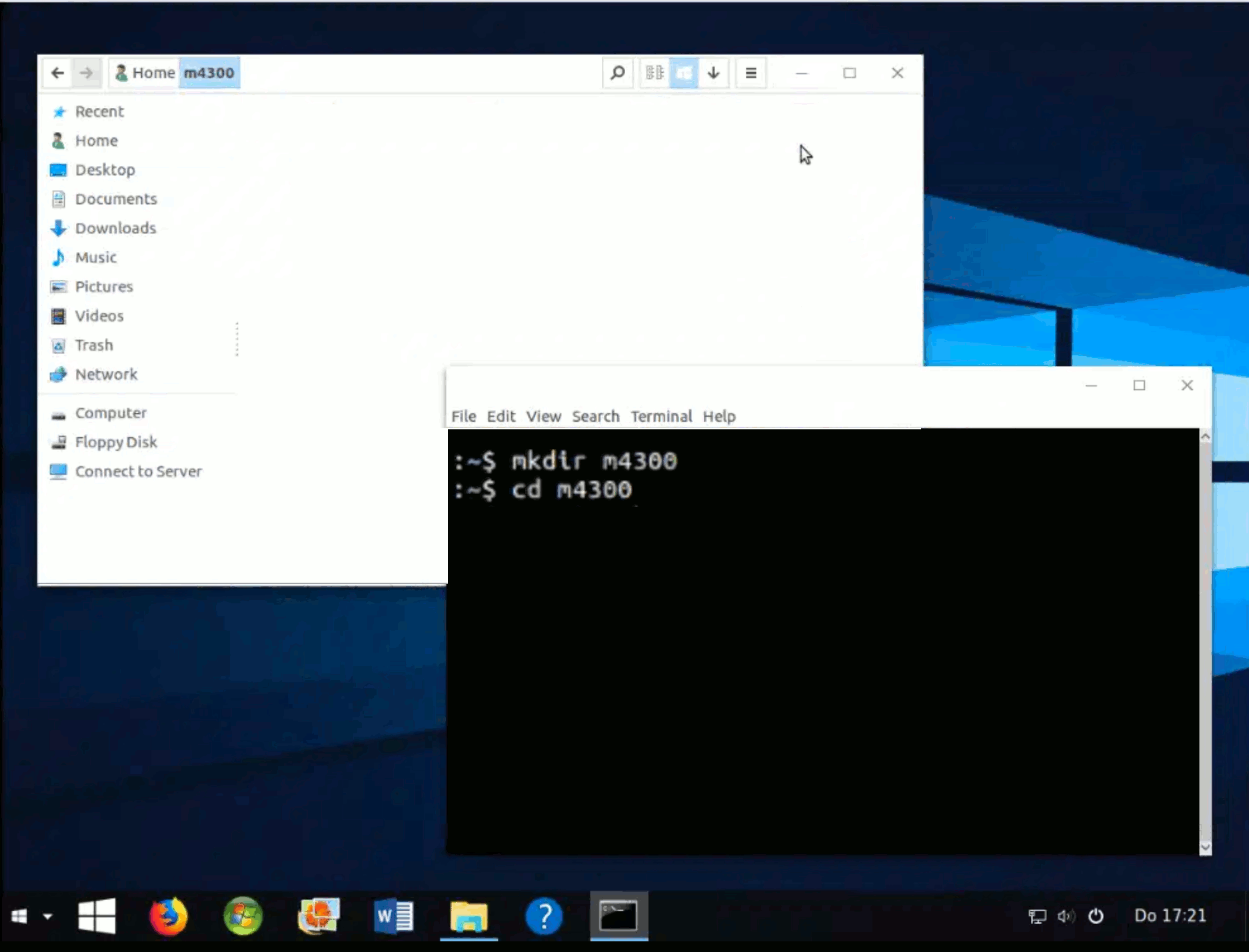
Give the command mkdir m4300 to create a folder that we will use to write our programs. Although the command was given to the Terminal, you will notice that the folder has appeared in File Explorer as well.
2.4 Entrance to the folder
Enter the newly created folder both in Terminal and in the File Explorer. Type the command cd m4300 in the Terminal. Double click on the folder m4300 in File Explorer.
2.5 Source file creation
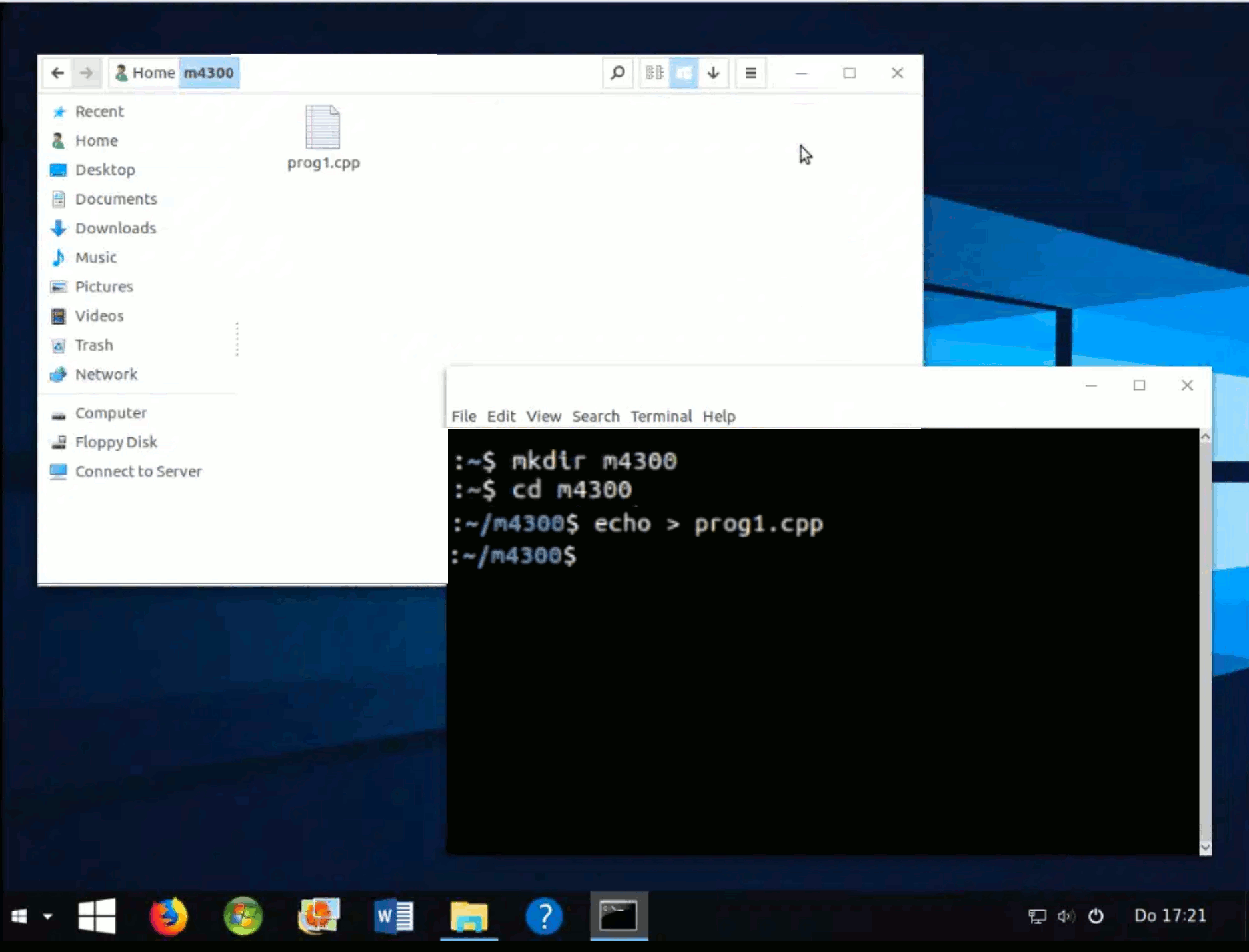
Create the source file. Type the command echo > prog1.cpp in the Terminal. You may receive a question from the Terminal. Just click enter. You will notice a new file that appears in the File Explorer. The name of the file is prog1.cpp
2.6 Typing of the source code
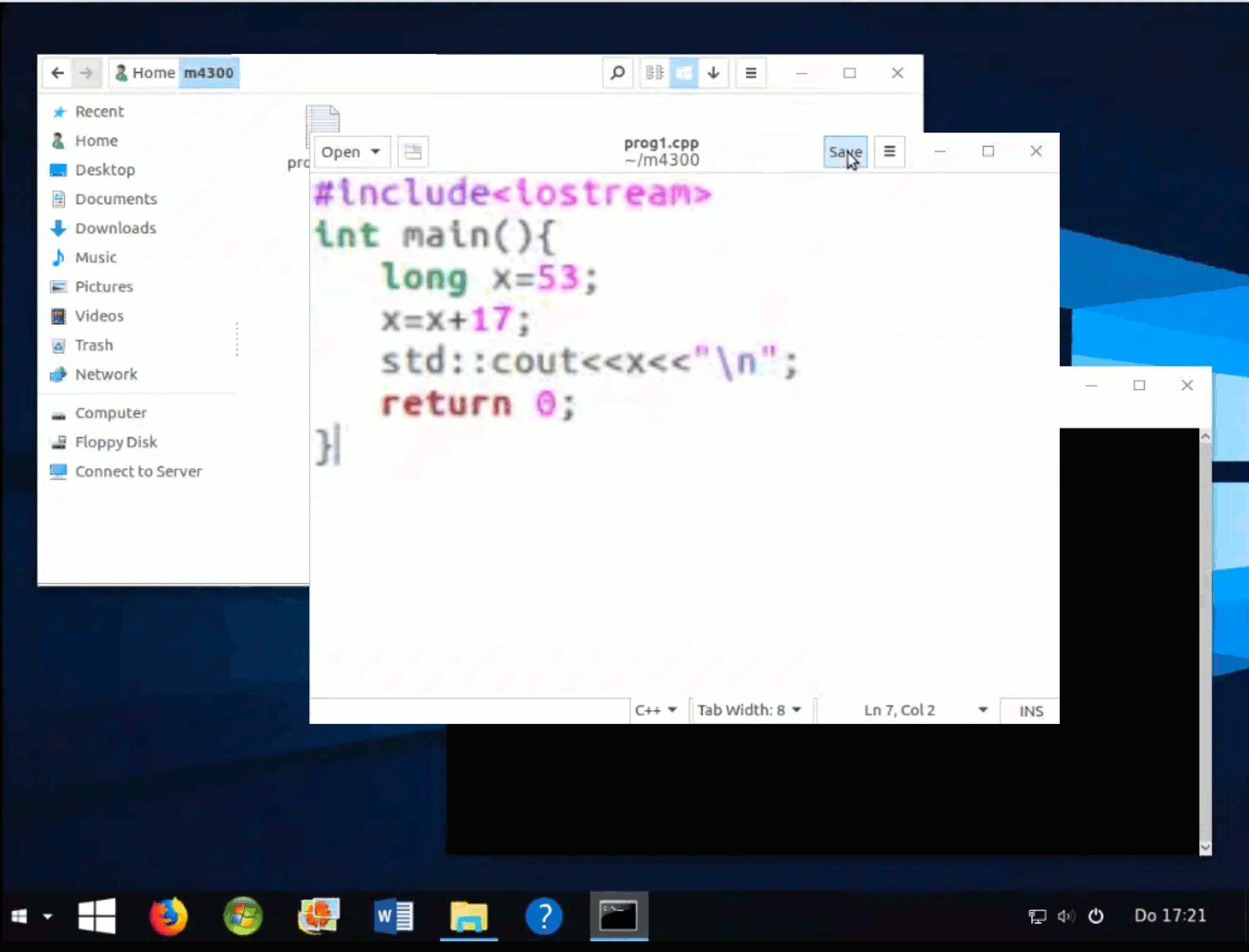
Move the mouse over to the File Explorer window. Right-click on the file prog1.cpp and choose to open the file with some simple text editor. Type the C++ source code as shown in the picture below. Make sure you save the file after the c++ source was typed in.
2.7 Compiling the source code
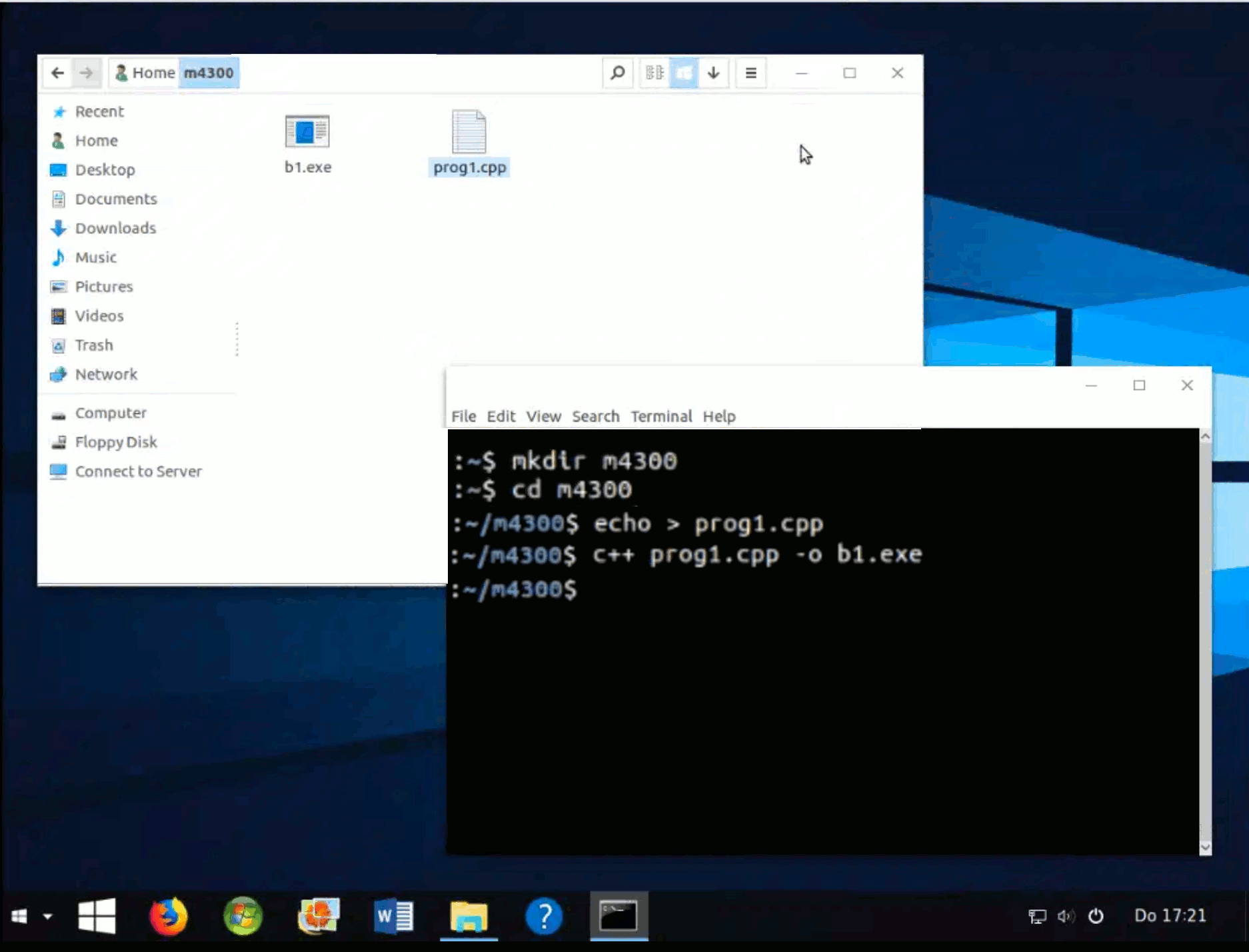
Compile the source and create the binary by typing the following command in the terminal:
c++ prog1.cpp -o b1.exeA new binary file must appear in the File Explorer. If it did not, then there are two possible errors. The first possible error is that your computer does not have a c++ compiler. The second possibility is that there are errors and/or typos in your source file which caused the compiler to refuse to make the binary. For example, you typed the word
int with capital I instead of lowercase i. Or, you typed long with capital L instead of lower-case L. C++ is case-sensitive. In either of the cases, the terminal has given you an error message that you need to investigate.
2.8 Executing the binary
Execute the binary by typing one of the following two instructions: .\b1.exe or b1.exe. The program should print 70 in the terminal.